
Eduwing Responsive Premium Moodle Theme
How to Set Up Your Moodle Site Exactly Like Our Demo
To configure your Moodle site to match our demo layout and design, please follow the steps below:
- After installing the theme, go to the Theme Settings page (Home → Site administration → Appearance → Themes → EduWing) and configure all options as needed.
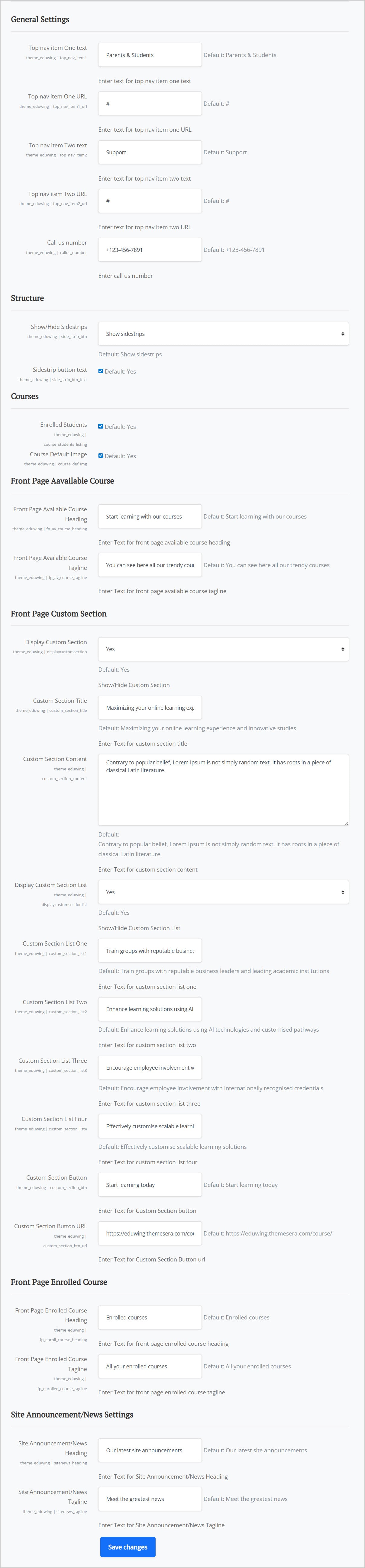
- Navigate to the General Settings page, adjust the available options, and save your changes.
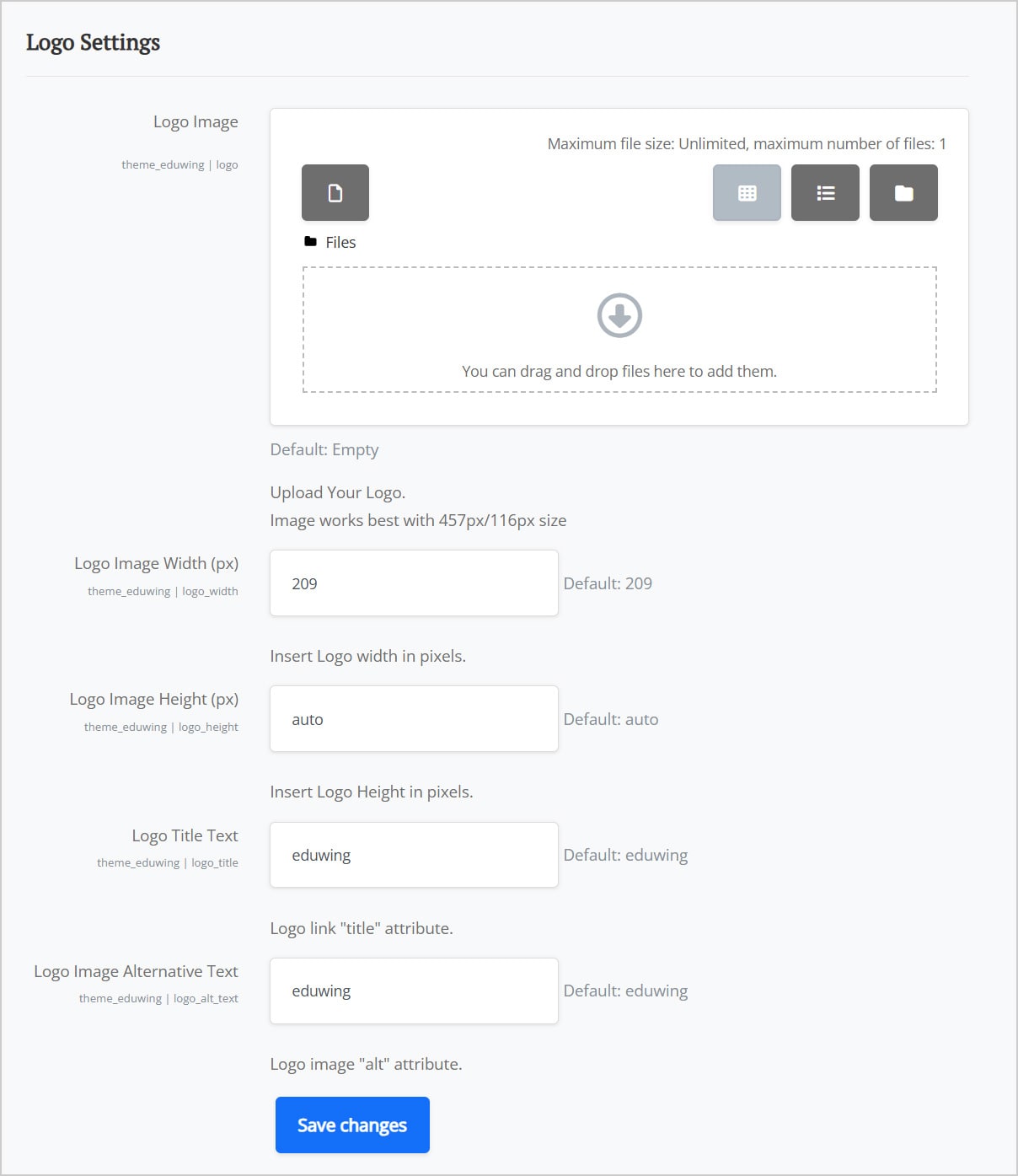
- Open the Logo Settings page to upload your logo. You can also adjust its height and width, and set alternative text for accessibility.
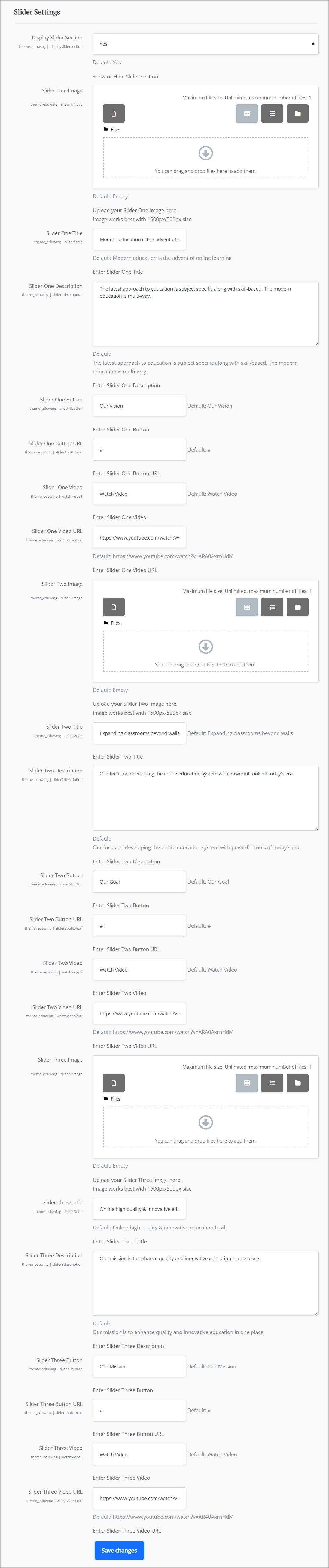
- Go to the Slider Settings page to customize the front-page sliders.
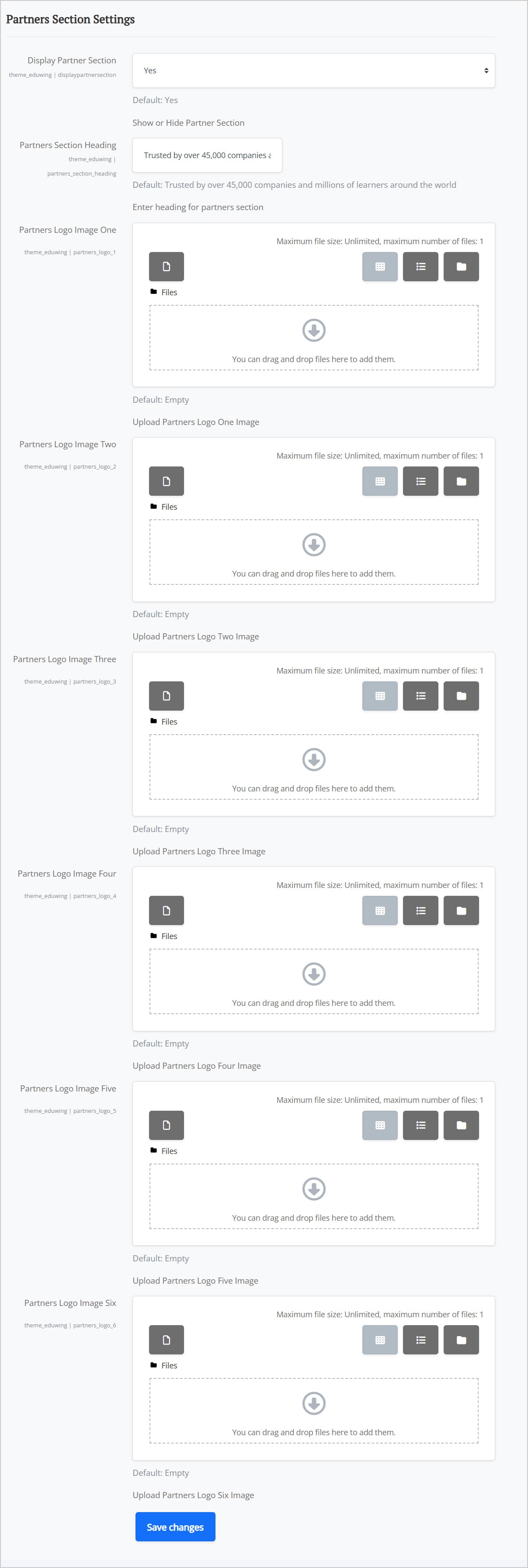
- Visit the Partners Section Settings page to add text and upload partner logos.
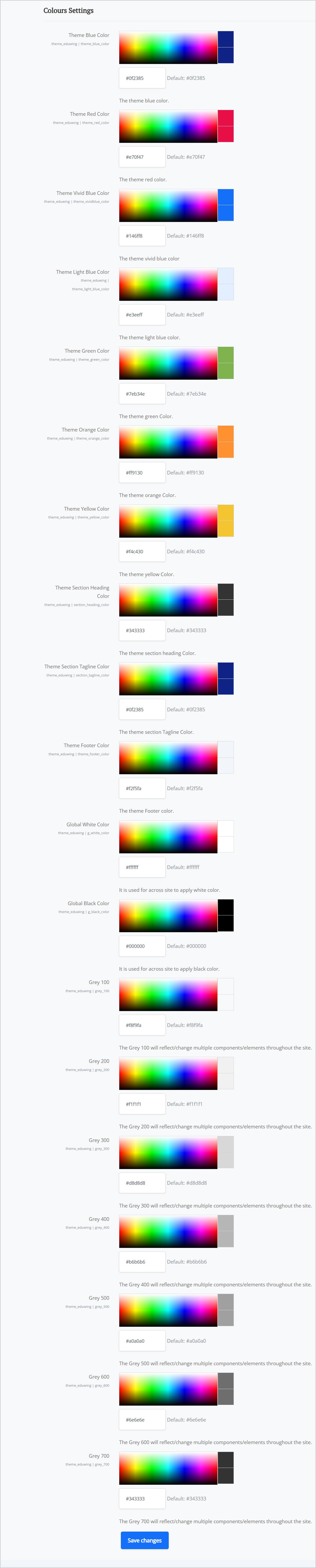
- Open the Colours Settings page to modify the site-wide color scheme. Over 40+ color customization options are available.
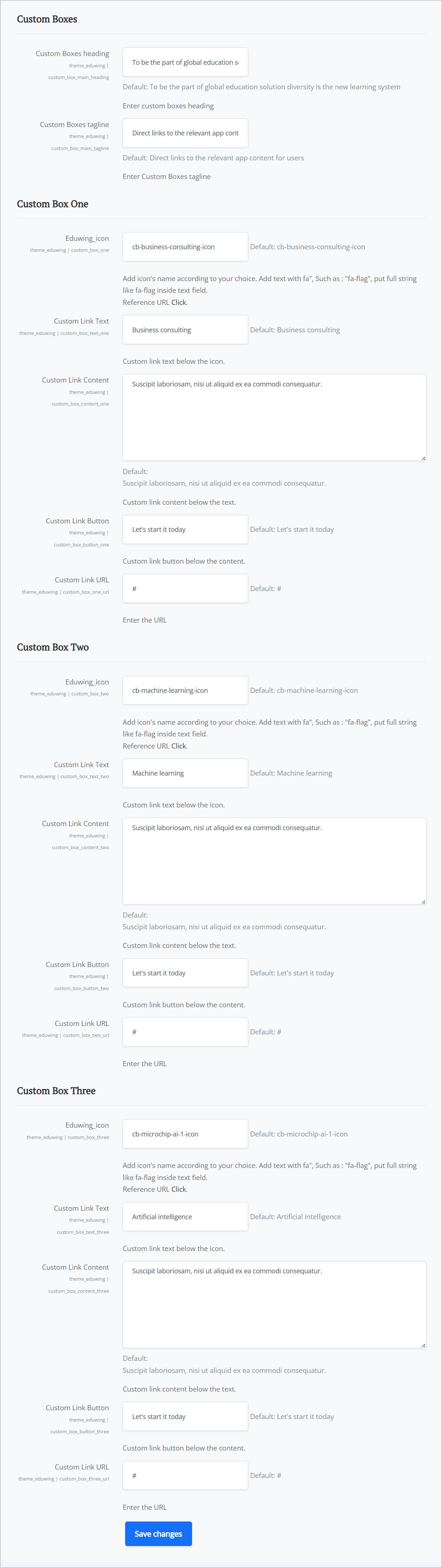
- Go to the Custom Boxes Settings page to set icons, text, content, and links for the custom boxes.
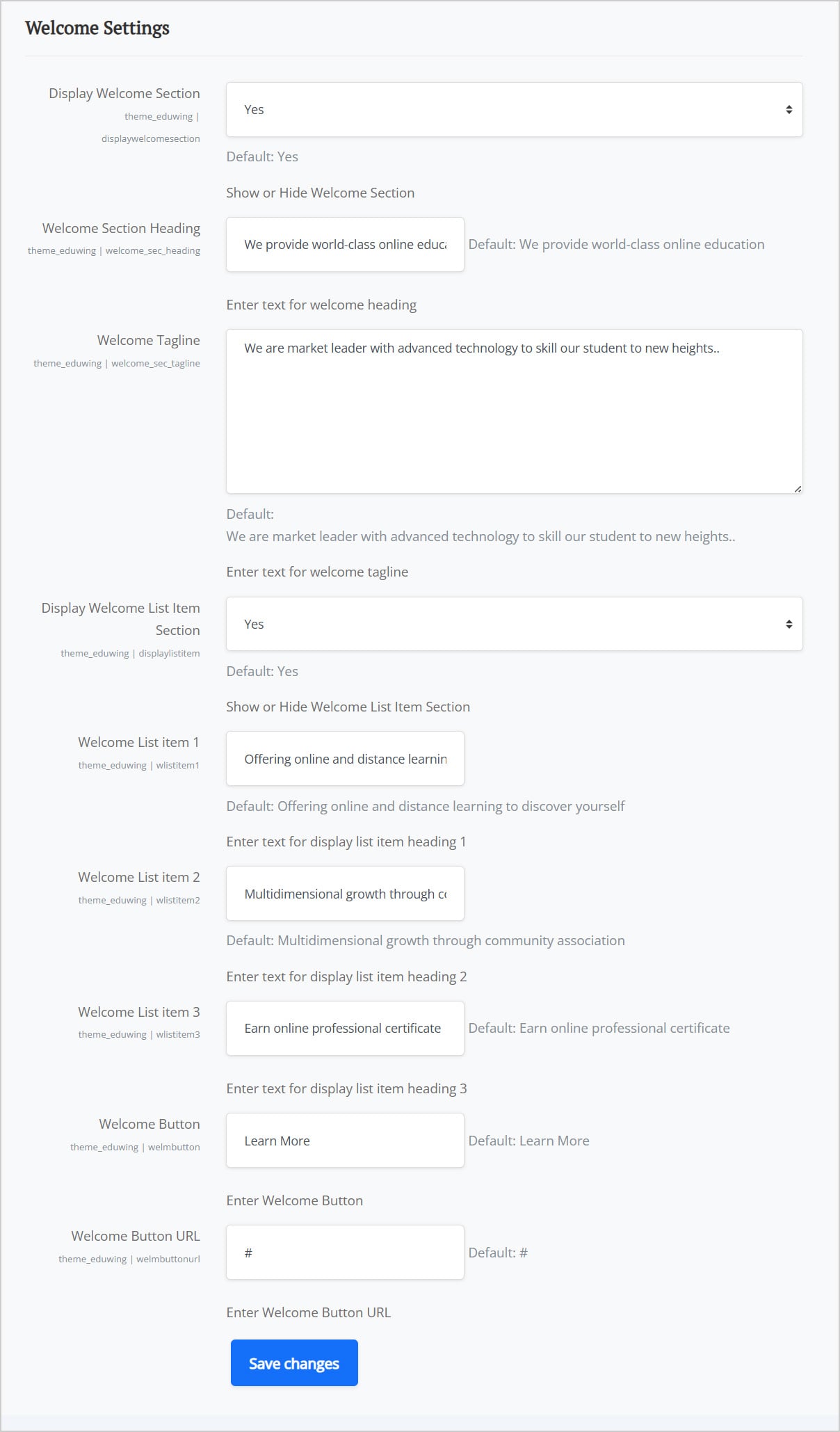
- Visit the Welcome Settings page to customize the front-page Welcome section.
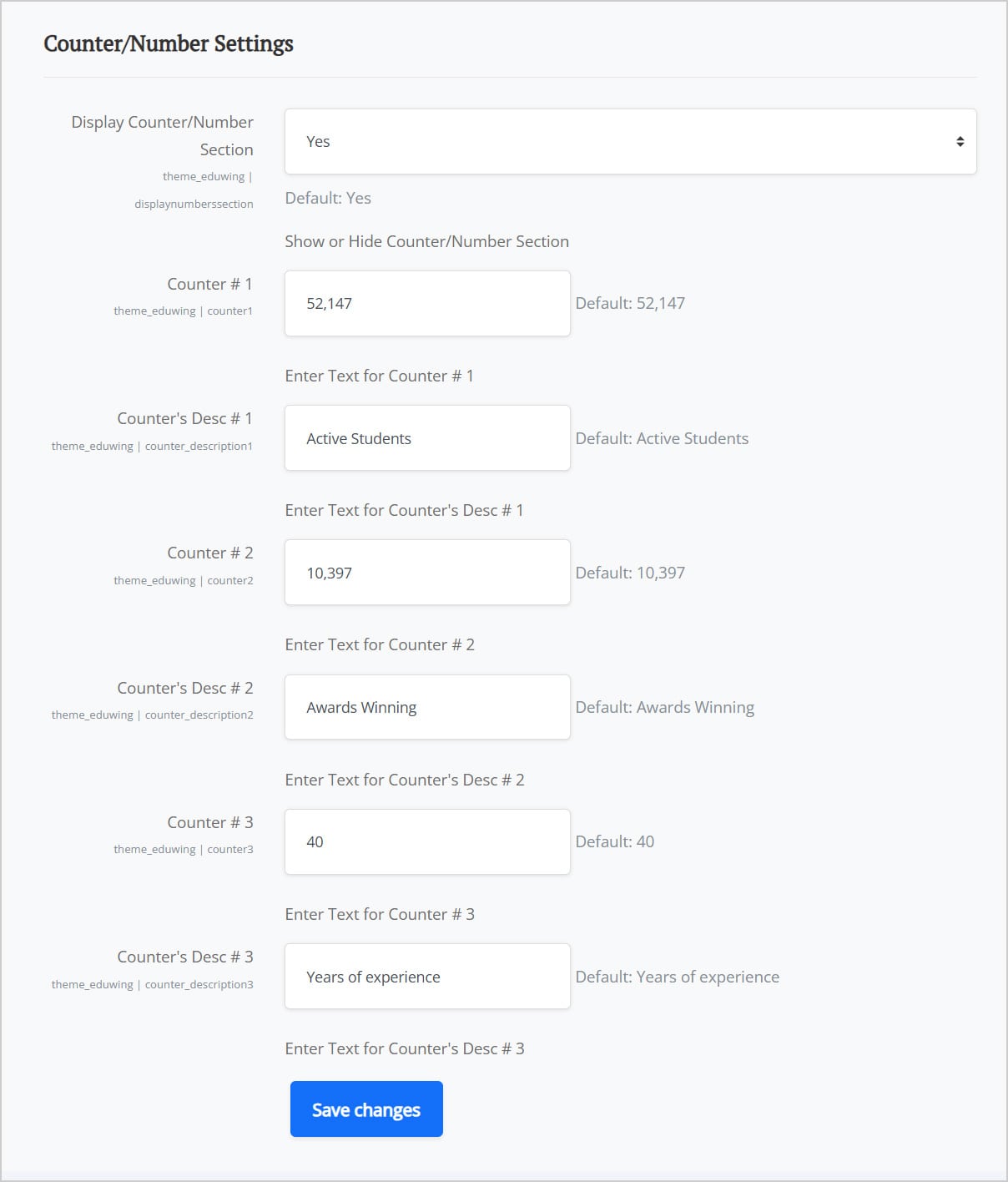
- Go to the Counter/Number Settings page to adjust numerical counters displayed on the homepage.
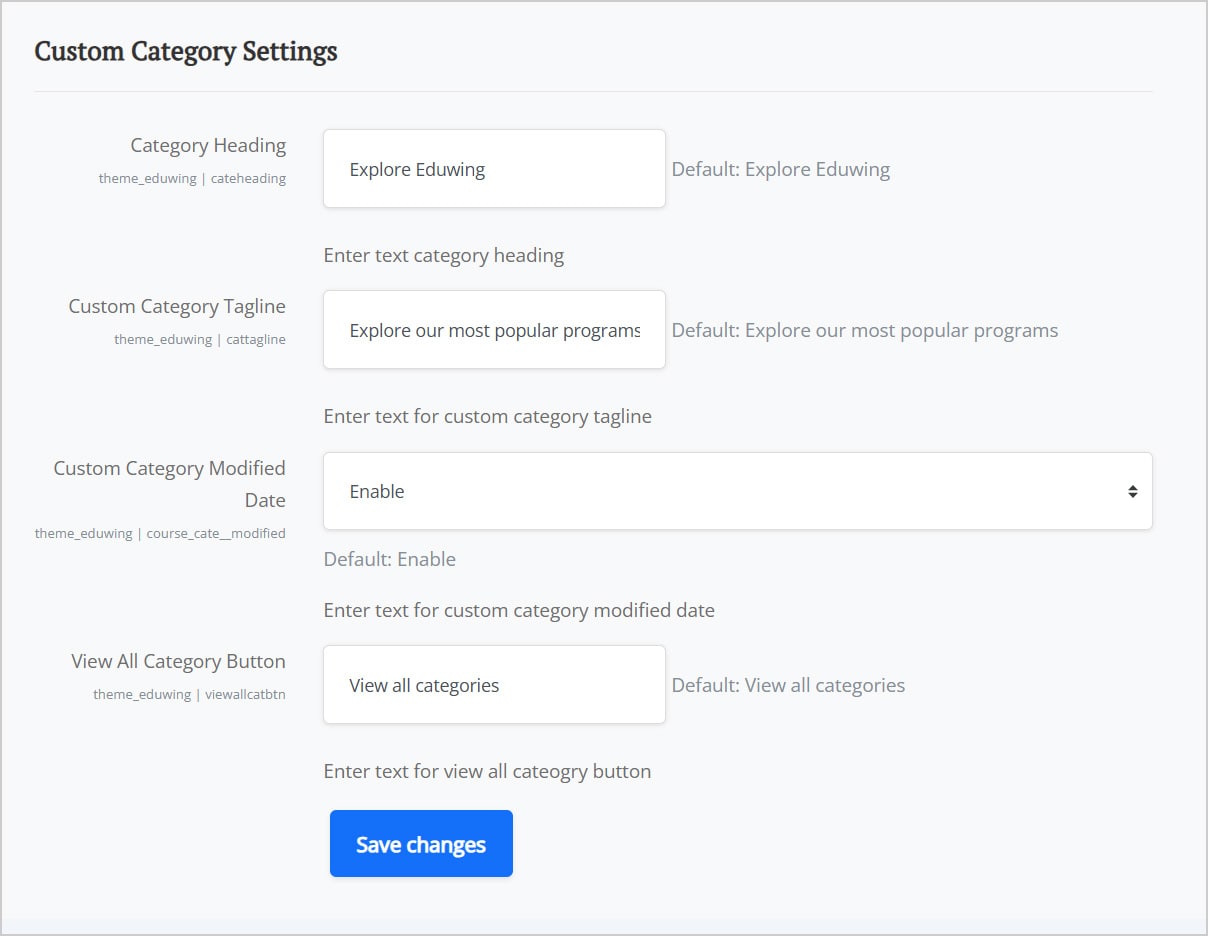
- Open the Custom Category Settings page to set the Category Heading, Tagline, Modified Date, and other related options.
- Visit the Tutor Settings page to add teacher profiles including name, subject, and rating.
- Use the Colours Settings page again if additional theme color adjustments are needed.
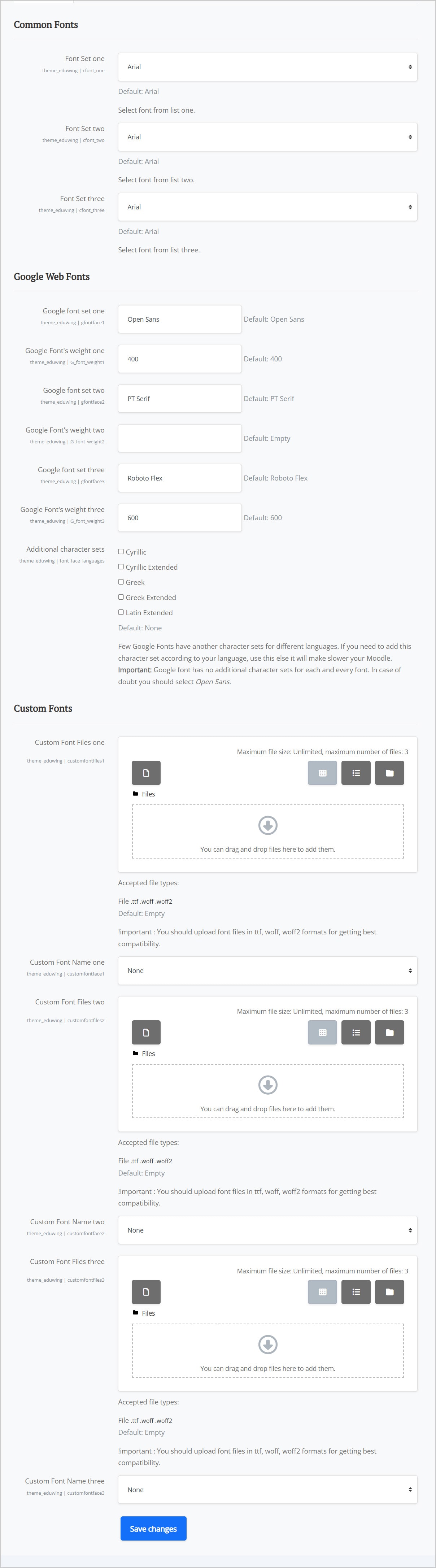
- Navigate to the Fonts Settings page to configure all site-wide typography options.
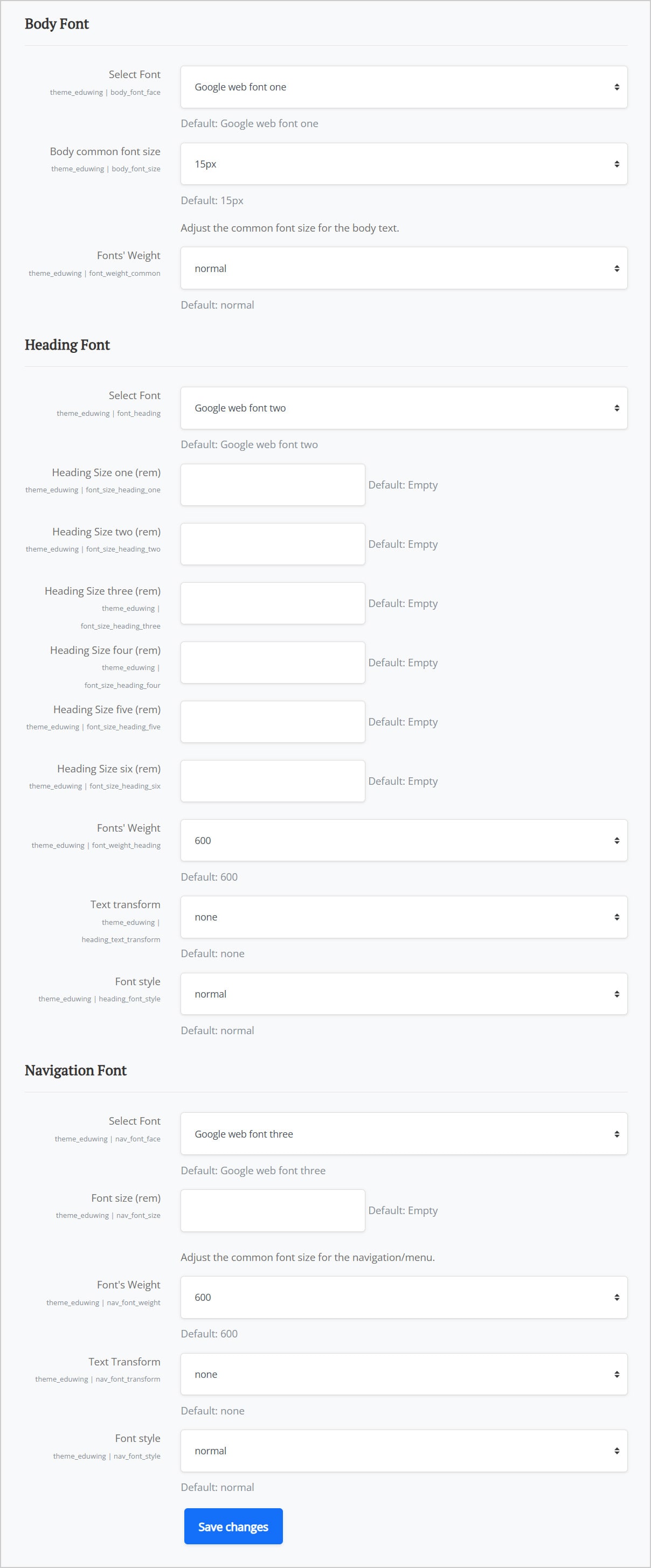
- Go to the Typesetting page to set font sizes, font weights, and font styles across the site.
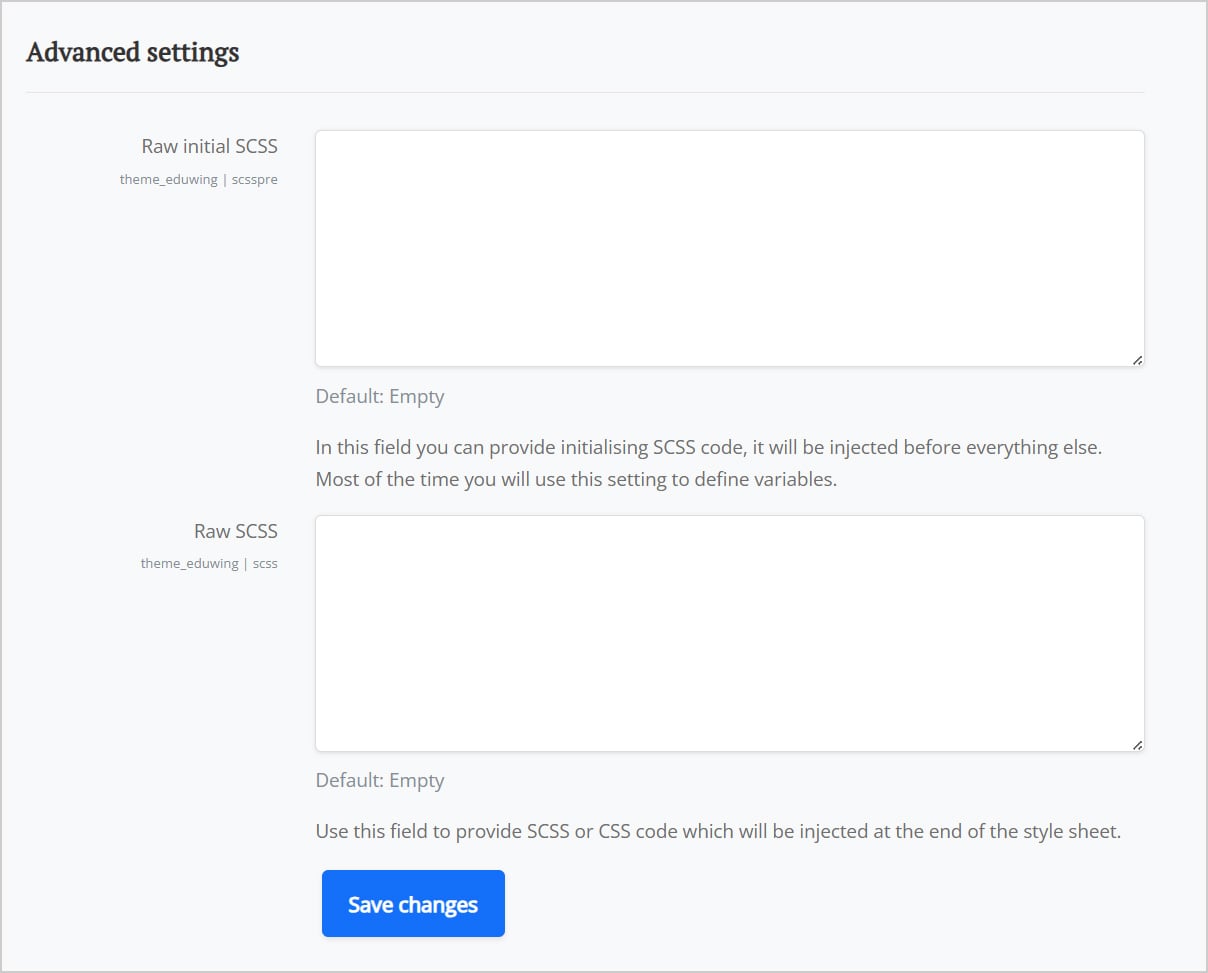
- Open the Advanced Settings page to add your own custom SCSS/CSS code.
- Finally, visit the Footer Settings page to customize footer text, links, and URLs as needed.
If you need any assistance, feel free to contact us at cmsbrand93@gmail.com. Our team is always happy to help you.
Theme Settings Options
The EduWing theme is well-organized and highly customizable. You can configure all settings easily without requiring any coding knowledge.
General Settings
Home → Site administration → Appearance → Themes → EduWing → General Settings
- General Settings
- Structure
- Courses
- Front Page Available Course
- Front Page Custom Section
- Front Page Enrolled Course
- Site Announcement / News Settings
EduWing – Logo Settings
Home → Site administration → Appearance → Themes → EduWing → Logo Settings
- Logo Settings
Slider Settings
Home → Site administration → Appearance → Themes → EduWing → Slider Settings
- Slider Settings
Partners Section Settings
Home → Site administration → Appearance → Themes → EduWing → Partners Section Settings
- Partners Section Settings
Custom Boxes
Home → Site administration → Appearance → Themes → EduWing → Custom Boxes Settings
- Custom Box One
- Custom Box Two
- Custom Box Three
Welcome Settings
Home → Site administration → Appearance → Themes → EduWing → Welcome Settings
- Welcome Settings
Counter / Number Settings
Home → Site administration → Appearance → Themes → EduWing → Counter/Number Settings
- Counter/Number Settings
Custom Category Settings
Home → Site administration → Appearance → Themes → EduWing → Custom Category Settings
- Custom Category Settings
Tutor Settings
Home → Site administration → Appearance → Themes → EduWing → Tutor Settings
- Tutor Settings

Colours Settings
Home → Site administration → Appearance → Themes → EduWing → Colours Settings
- Colours Settings
Fonts Settings
Home → Site administration → Appearance → Themes → EduWing → Fonts Settings
- Common Fonts
- Google Web Fonts
- Custom Fonts
Typesetting – Apply Font in HTML Elements
Home → Site administration → Appearance → Themes → EduWing → Typesetting
- Body Font
- Heading Font
- Navigation Font
Advanced Settings
Home → Site administration → Appearance → Themes → EduWing → Advanced Settings
- Advanced Settings
Footer Settings
Home → Site administration → Appearance → Themes → EduWing → Footer Settings
- Footer Settings
- Footer List Item Column 1
- Footer List Item Column 2
- Footer List Item Column 3
- Footer List Item Column 4
- Footer List Item Column 5
- Footer List Item Column 6
- Footer List Item Column 7
